Dynamic Org Charts from Microsoft Entra ID
Organizations never stay still. People join, leave, and move between roles and departments. A manually created and maintained org chart becomes out of date almost as soon as it has been published.
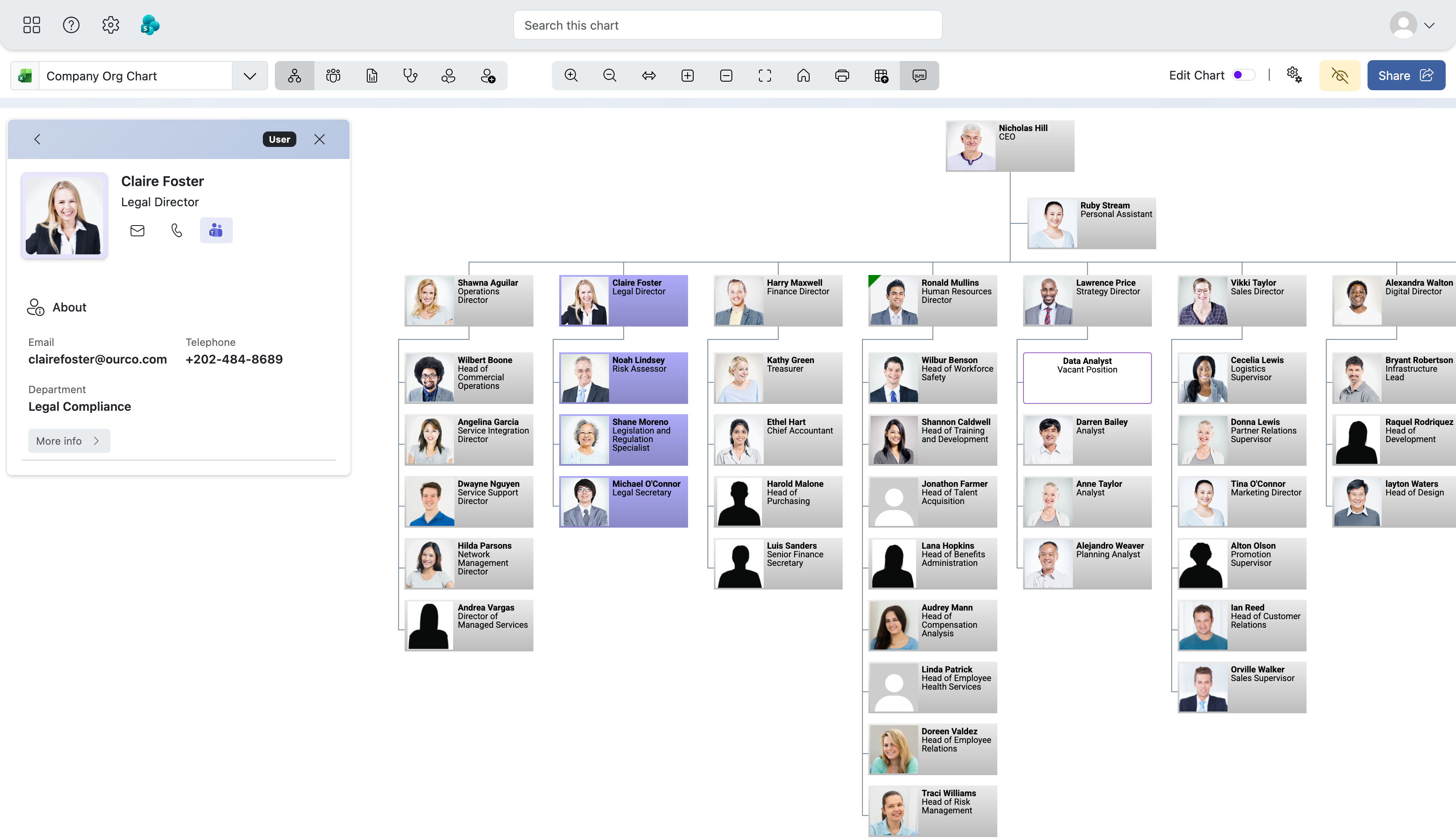
A dynamic, data driven, org chart removes much of that maintenance. Instead of manually drawing and connecting boxes the chart is generated from the organizational data your business already maintains.
For organizations using Microsoft 365 , Microsoft Entra ID already contains much of the information needed to do this. With your consent, TeamOrgChart reads employee information and manager relationships directly from Entra ID through Microsoft Graph, then builds the hierarchy, intelligently lays out the organization chart and applies your presentation rules automatically.
You maintain your organization in Entra ID. TeamOrgChart builds the organization chart.
Start your free 30-day trial
Explore every TeamOrgChart feature with no commitment and no credit card. Sign in with your Microsoft work or school account to get started.
 Sign in with Microsoft
What is a dynamic org chart?
A dynamic org chart is generated from organizational data rather than being manually drawn and maintained.
With a traditional PowerPoint, Visio or diagram-based org chart, somebody has to add every employee, connect reporting lines, reposition boxes as teams change and redistribute the finished chart.
A dynamic org chart works differently. The structure comes from its underlying data. TeamOrgChart turns that data into a dynamic, interactive, org chart automatically.
For organizations using Microsoft 365 , that data can come from Microsoft Entra ID. The result is not simply a picture of the organization at one point in time. It is a view generated from the organizational data that the business already owns.
If you are new to the subject, start with what is an org chart, then explore how data-driven org chart software keeps that view useful as the business changes.
Build your org chart straight from Microsoft Entra ID
Many Microsoft 365 organizations already maintain the information needed to create an org chart in Entra ID.
Employee records can provide information such as:
- Name
- Job title
- Department
- Location
- Contact information
- Manager
The manager relationship is particularly important because it defines the reporting hierarchy. TeamOrgChart reads those relationships and uses them to construct the organizational hierarchy automatically.
There is no need to recreate the same reporting structure separately inside TeamOrgChart. See the onboarding guide for creating an org chart from Microsoft Entra ID.
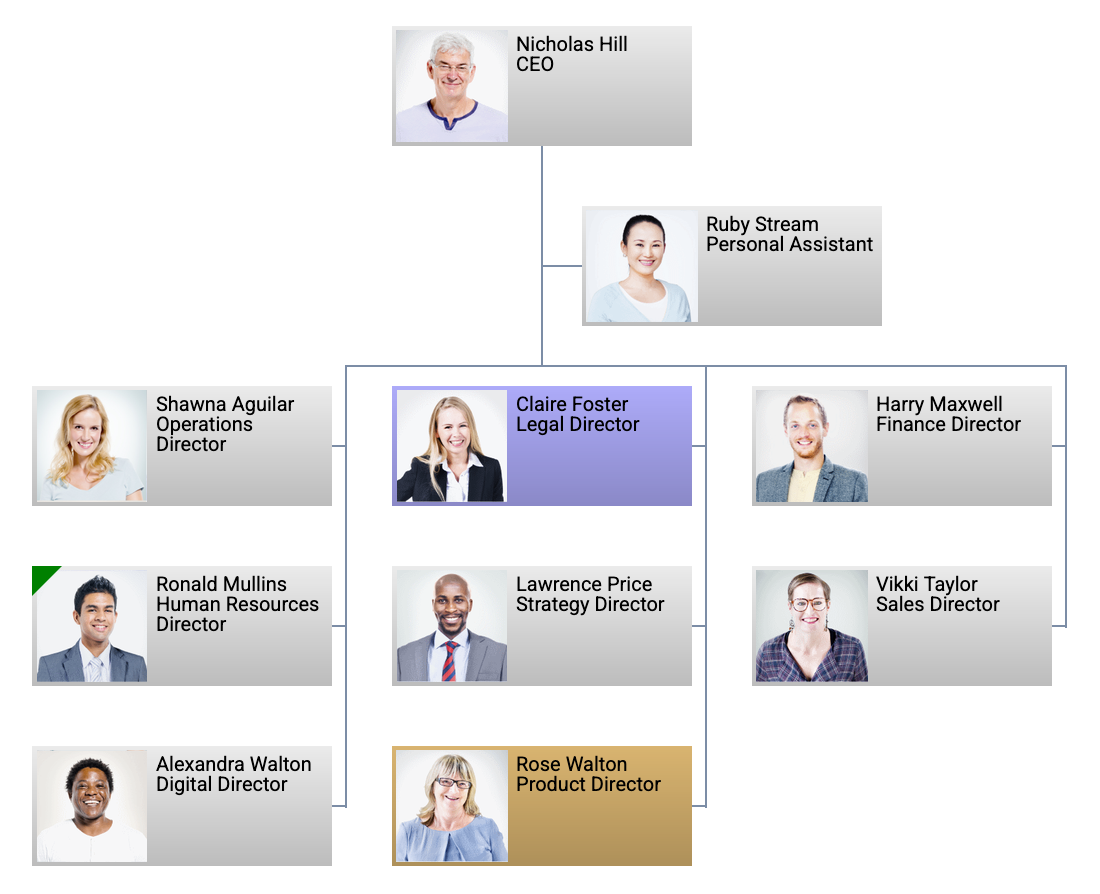
When Entra changes the org chart changes.
When somebody joins the organization, changes job title, moves department or starts reporting to a different manager, you should not also have to remember to update a separate organization chart diagram.
When TeamOrgChart displays the organization chart, it reads the current information required from Microsoft Entra ID.
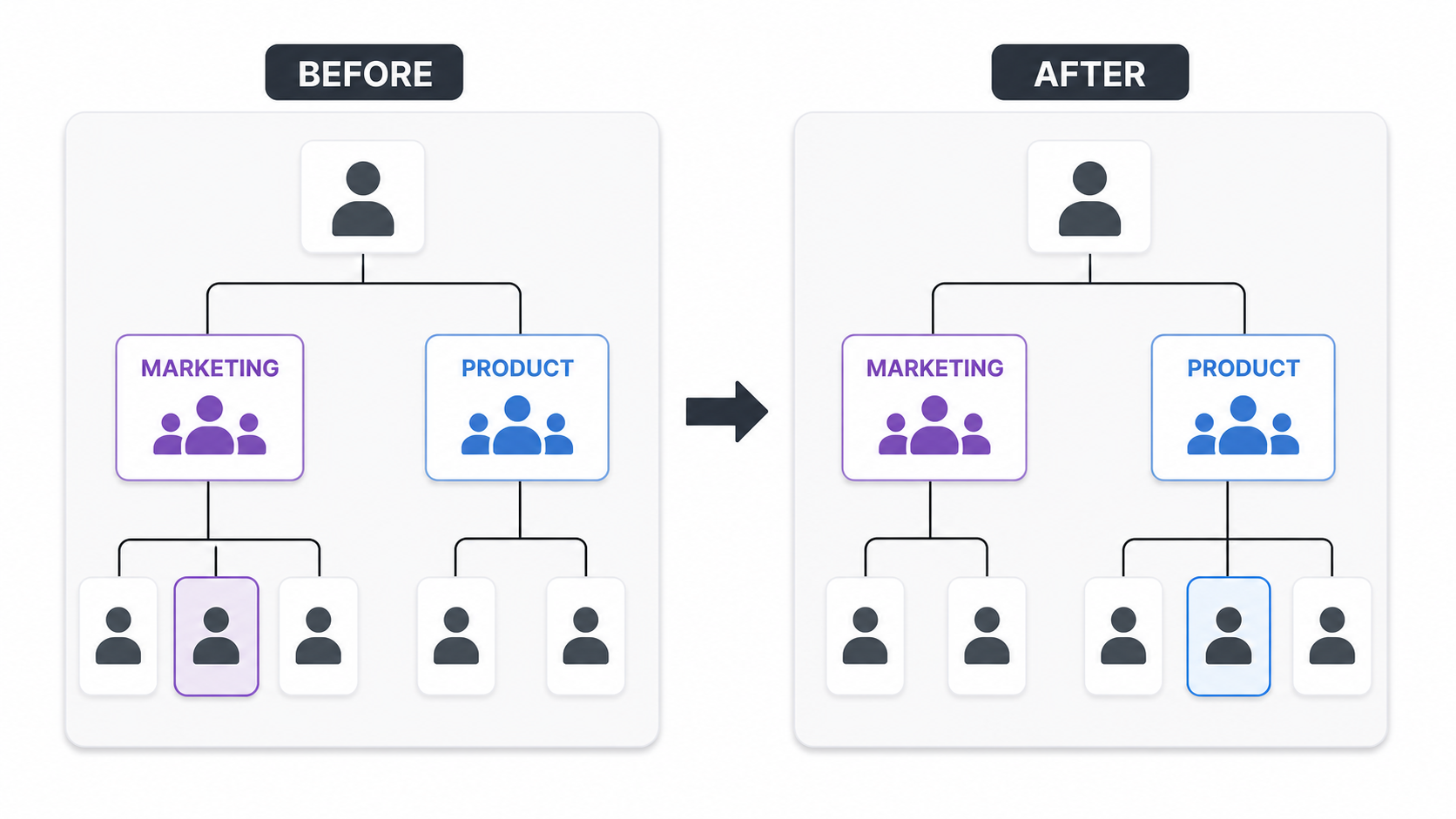
Suppose Sarah moves from Marketing to Product and her manager is changed in Entra ID. You do not need to:
- find Sarah on an existing diagram
- remove the old reporting line
- move her box
- draw another connection
- rearrange the surrounding team
- publish a replacement chart
TeamOrgChart reads the updated organizational information and rebuilds that part of the hierarchy automatically.
One organizational change. One place to do it.
What happens when somebody new joins?
Imagine a new employee joins the UK Sales team.
- Department
- Sales
- Country
- United Kingdom
- Manager
- UK Sales Director
When TeamOrgChart reads the new employee's current information, it will place them beneath the correct manager, recalculate the surrounding chart layout and apply any rules that match their data.
Nobody has to open an old diagram and manually create another employee box and then painstakingly update the chart.
What happens when someone leaves?
When someone leaves the organization, they should disappear from the org chart without somebody having to remove their box manually.
With TeamOrgChart the former employees are automatically filtered out of the org chart.
If the role still needs to be filled, TeamOrgChart can also be configured to automatically show the position as vacant. The person is removed, while the position remains visible in the reporting structure.
You don't have to lay out the chart
Keeping employee information current is only part of the problem. Somebody still has to turn a reporting hierarchy into a readable organization chart.
TeamOrgChart does this automatically. It analyses the reporting structure and calculates an appropriate layout for the chart, positioning employees and reporting branches to make effective use of the available screen space.
If a manager gains five new employees, somebody changes manager or an entire department is moved, you do not have to manually reposition the surrounding boxes.
The org chart is created from the data.
Use rules to automatically shape the chart
Entra ID is designed to manage identities and organizational information. It is not designed to decide exactly how your organization chart should look or who should be in it.
TeamOrgChart uses rules to examine your organizational data and automatically decide how matching employees and positions should be treated.
A rule broadly consists of a condition that identifies an employee or group of employees and a set of actions that should be applied to the matching staff.
Department style
Condition
Department = “Sales”
Action
Apply the Sales box style.
Leadership style
Condition
Job title contains “Director”
Action
Apply a director box style.
Account exclusion
Condition
Account matches unwanted service or admin criteria.
Action
Exclude the account from the chart.
For configuration details, see the guide to org chart rules and conditional formatting.
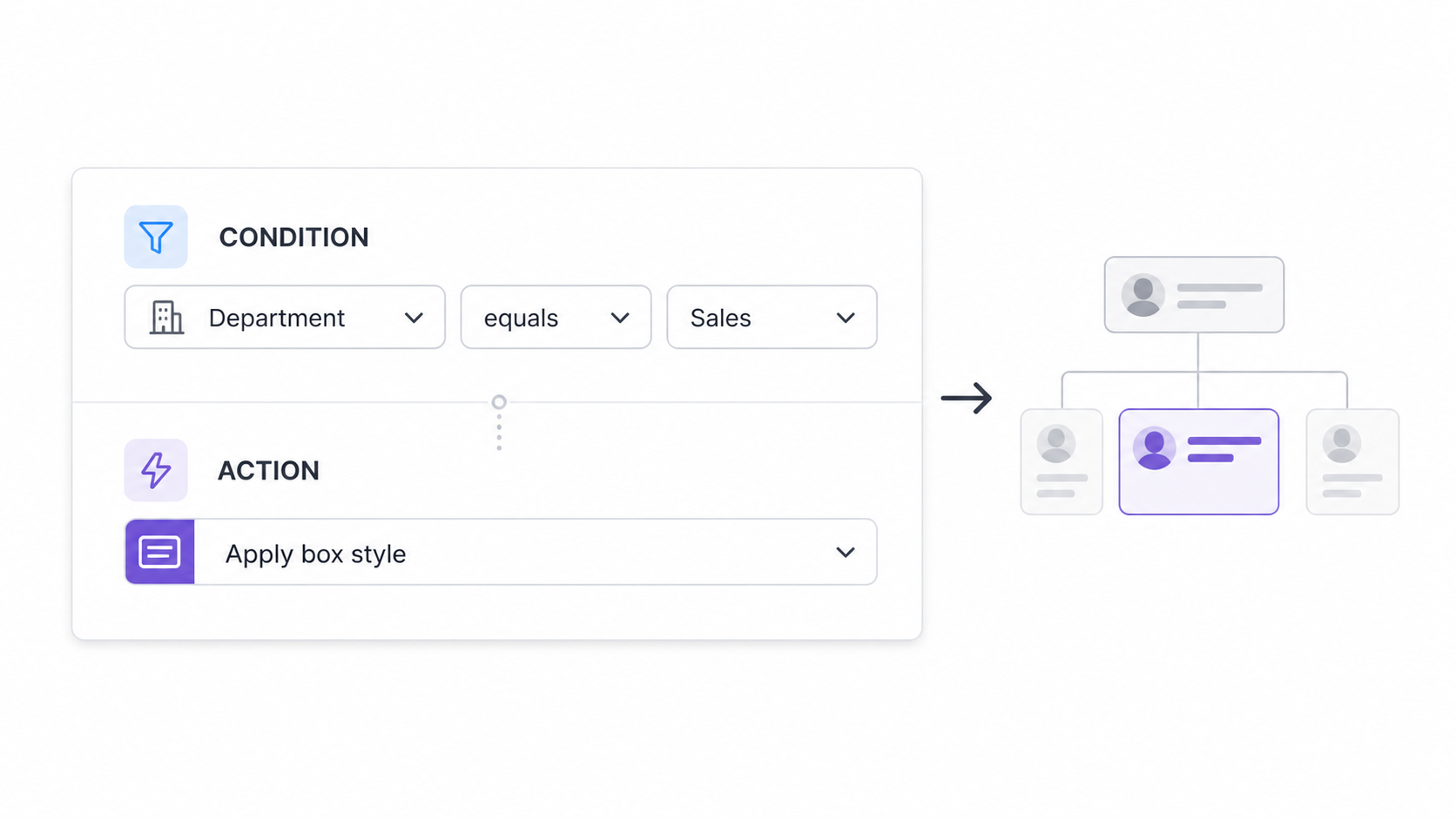
The formatting follows the data
Rules mean that formatting does not have to be repeatedly applied by hand.
For example, you could configure TeamOrgChart so that directors have a particular box style, departments use different colours, contractors are visually identified and unwanted administrative accounts are excluded.
As TeamOrgChart draws the organization chart, it evaluates the rules against each employee's information and applies the appropriate presentation automatically. If the employee later changes department or role, the rules are reevaluated against the current information.
This eliminates the need to labouriously update the chart by hand and keeps formatting consistent across the chart.
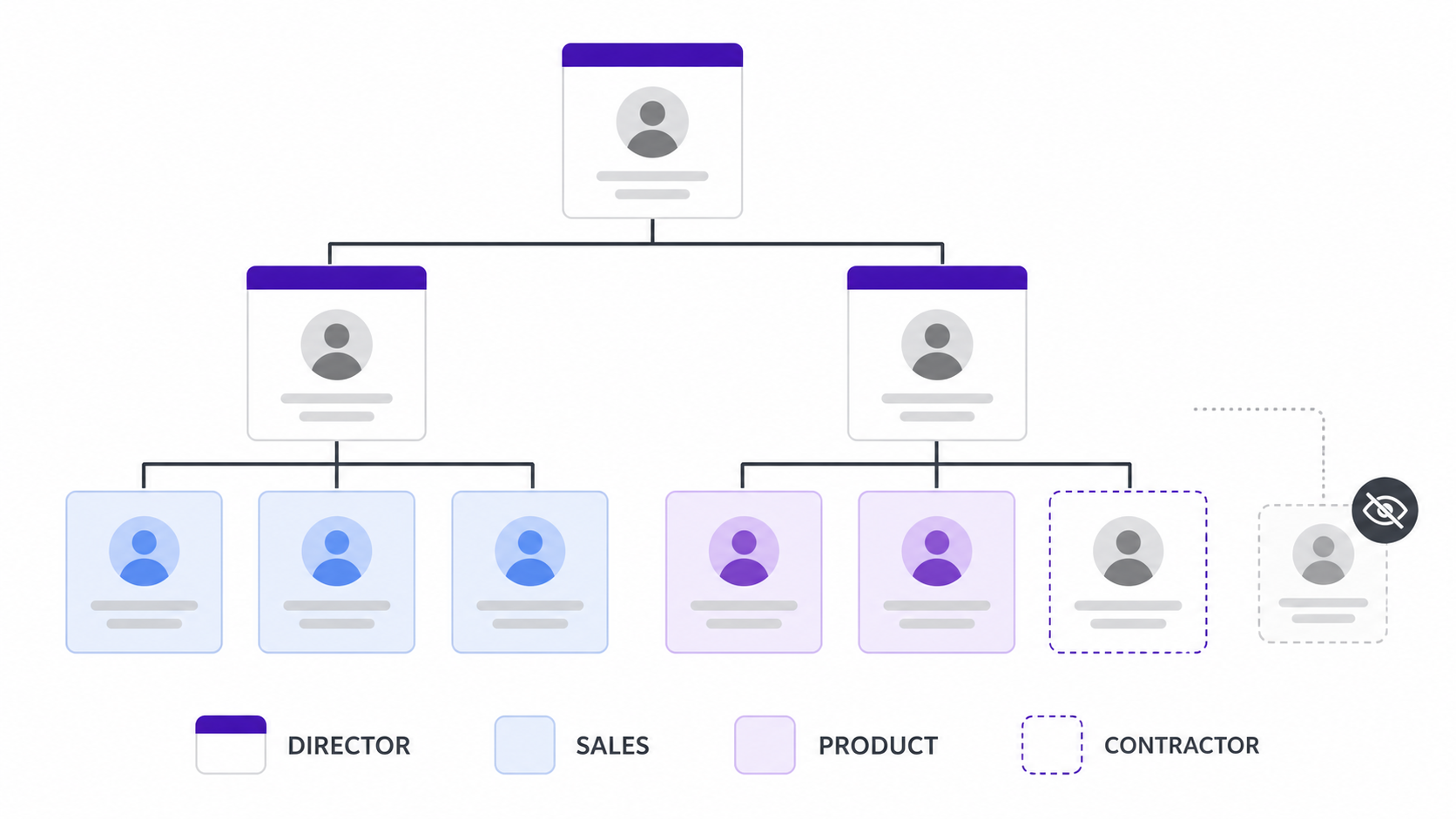
The employee changes. The data changes. The chart and its presentation follow the data.
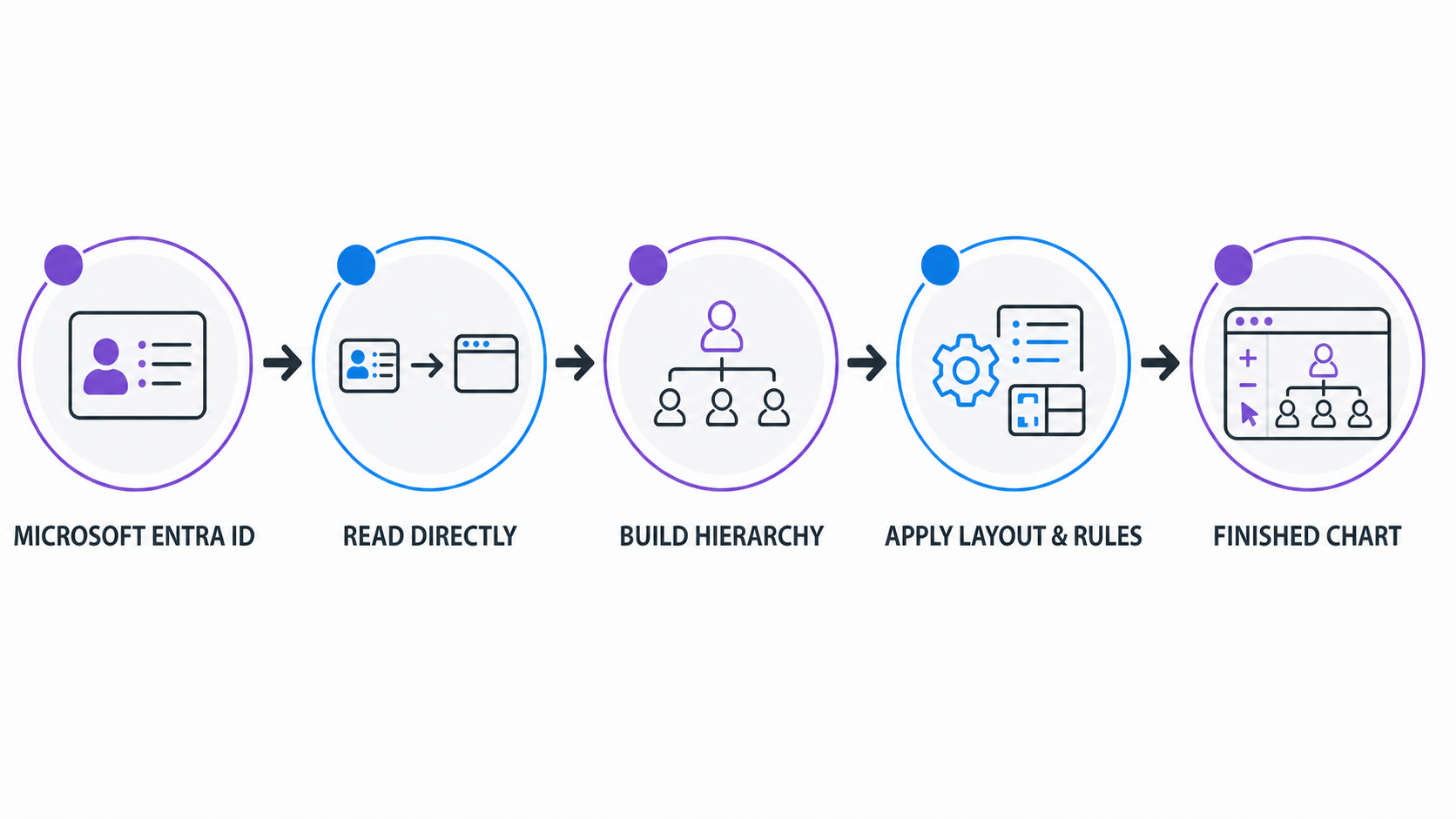
From Entra ID to a finished organization chart
The hierarchy, layout and presentation are driven by the data—not maintained by somebody manually editing a diagram.
Microsoft Entra ID
Employee profile information and manager relationships are maintained as part of Microsoft 365.
TeamOrgChart queries Entra
The required employee information and reporting relationships are read from Entra ID via Microsoft Graph.
The hierarchy is constructed
TeamOrgChart determines who reports to whom.
Layout and rules are applied
The chart is laid out and configured styles, exclusions and other rules are evaluated.
Employees see the chart
Users can search, navigate and explore the resulting interactive organization chart.
One Entra directory, multiple dynamic org charts
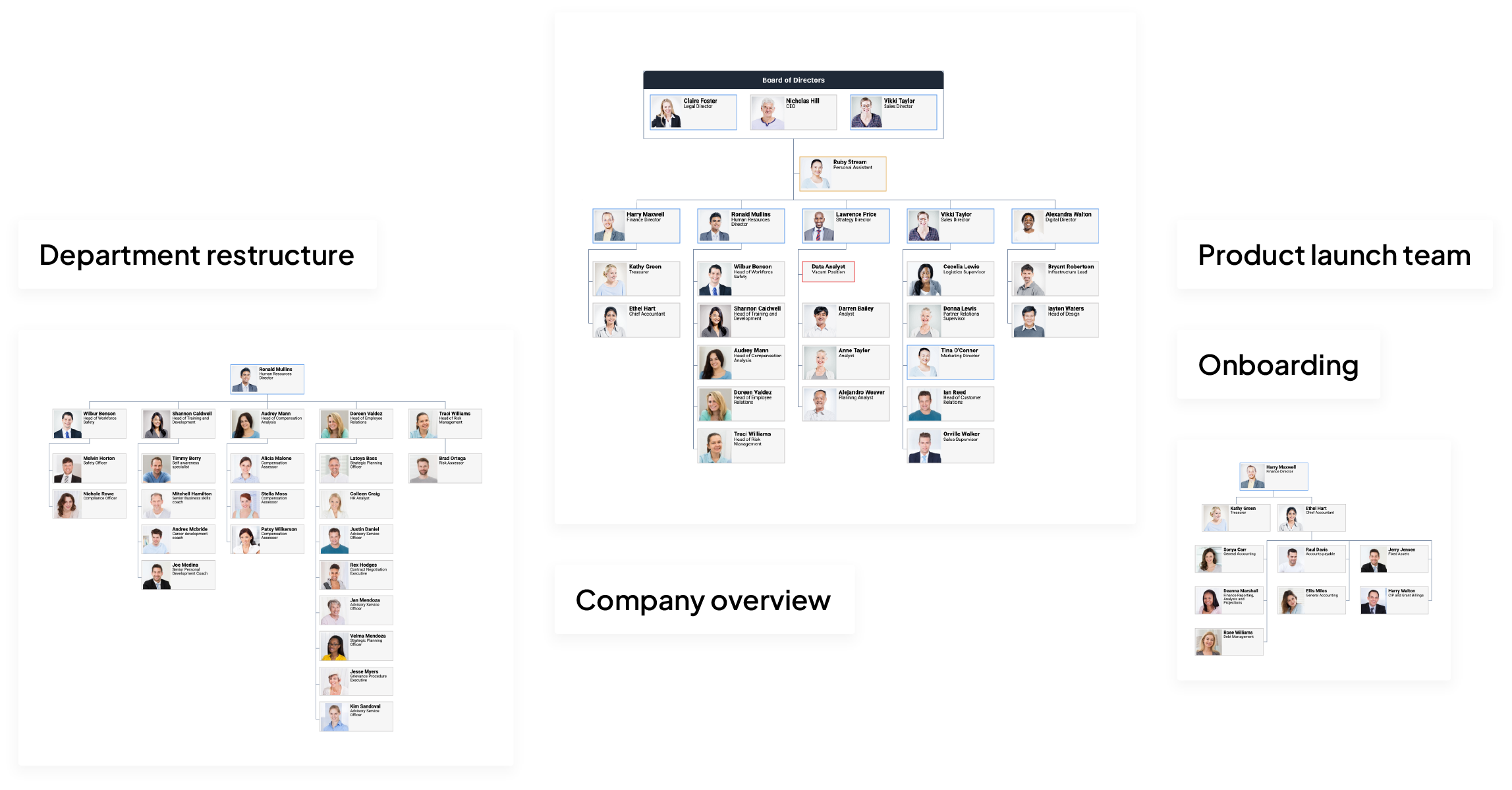
One organizational data source does not mean you are limited to one chart. TeamOrgChart can create different chart views from the same underlying employee information.
Company chart
Show the wider organization.
Department chart
Focus on a specific reporting branch.
Regional chart
Present a country or business region.
Management chart
Focus on selected organizational levels.
Special-purpose chart
Use rules and configuration to create a view for a particular audience.
Each chart can have its own configuration while remaining connected to the organization's Entra. Explore more TeamOrgChart features and learn why Microsoft 365 organizations choose TeamOrgChart.
Frequently asked questions
Start your free 30-day trial
Explore TeamOrgChart with your own Microsoft 365 organization. No commitment and no credit card required.
Learn how to create an org chart from Microsoft Entra ID